
Dream Skin themes/09
Make your daily workspace feel like you.
Choose a built-in theme and adjust the background and appearance for a workspace you enjoy using.
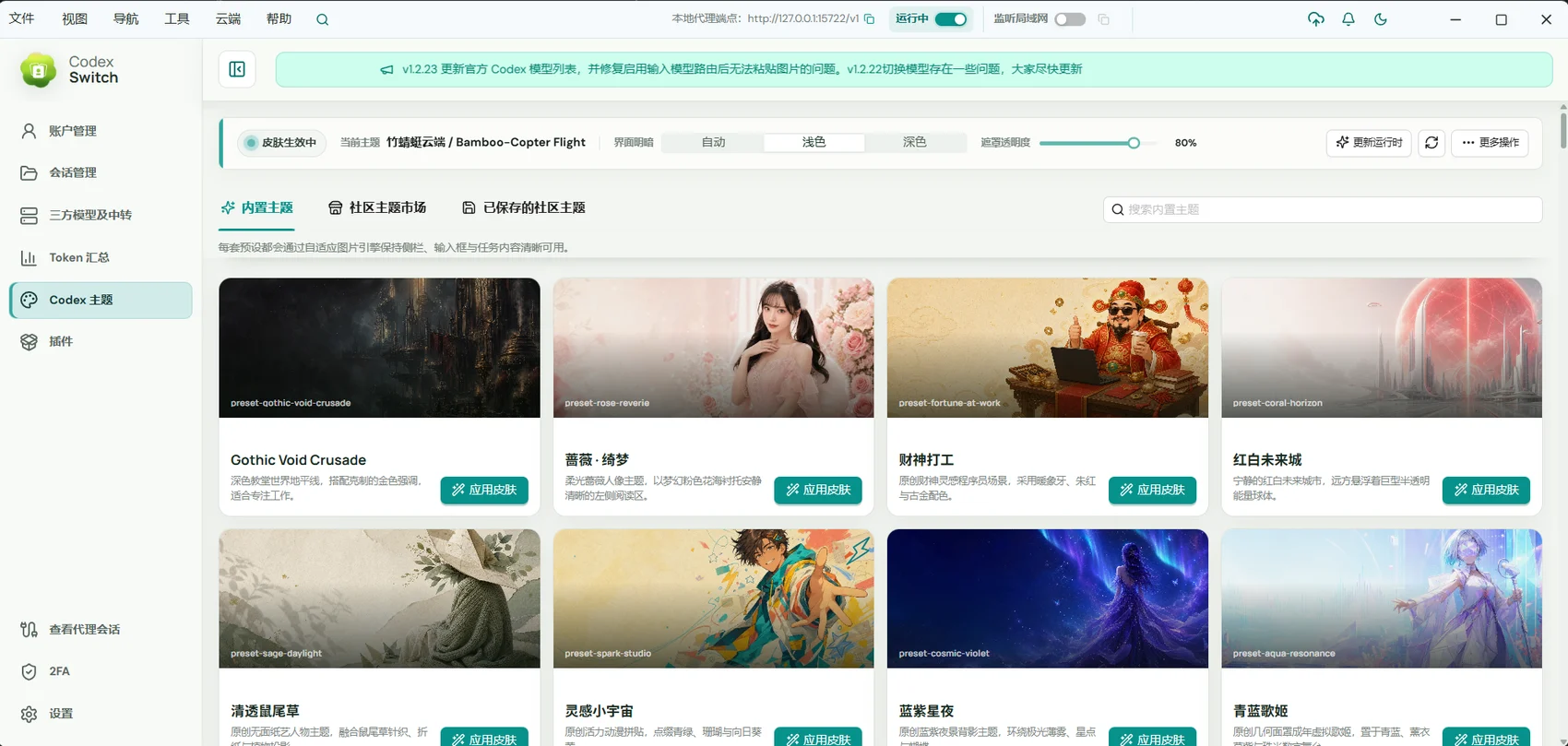
For people who want a personal visual environment and a more comfortable reading experience.
01 / Dream Skin themes
Start with a style you like
Choose from 300+ built-in presets with Codex-Dream-Skin compatibility, then refine the details if needed.
- Browse theme presets.
- Apply a preferred style in one step.
- Try different looks for everyday work.
02 / Dream Skin themes
Tune the details for comfort
Adjust supported background and appearance options alongside preferences such as fonts and theme color.
- Use a custom background.
- Adjust supported appearance settings.
- Balance visual style with contrast and readability.
03 / Dream Skin themes
Experiment and return to familiar settings
Changing the visual theme does not require recreating projects or model configurations. Restore the default appearance when needed.
- Try different themes.
- Restore the default appearance.
- Remote workspaces use the viewing device’s appearance preferences.
Getting started
- Open Dream Skin or the theme page.
- Apply a preset and adjust its background and appearance.
- Check readability in daily use and restore or change the theme if needed.
Appearance can vary by platform, window size, and version. The screenshot shows one possible theme.
A few useful answers
Will a new theme change my projects or accounts?
Themes change the appearance. You do not need to recreate projects or reconfigure model services.
Can I restore the default look?
Yes. Restore the default appearance or choose a different theme.