
Codex GUI/01
From an idea. To a visible result.
Work with Codex in a graphical workspace that connects your project, context, execution, and code changes.
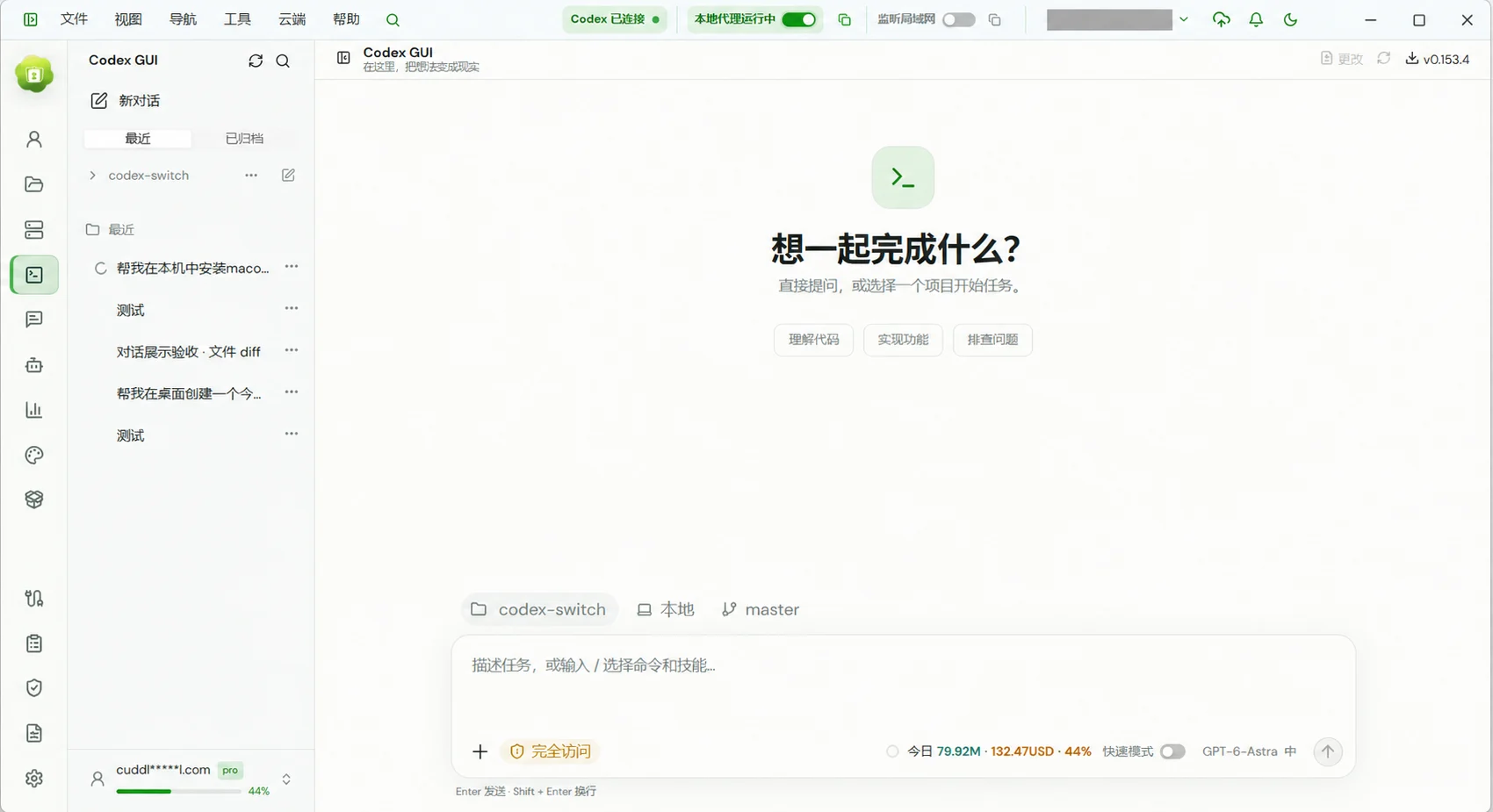
For developers who want to understand code, build features, and resolve issues through conversation.
01 / Codex GUI
Give each task the context it needs
Select a local project, describe the outcome, and attach images or reference files. Organize conversations around the work.
- Organize projects and view or switch Git branches.
- Use / to choose commands or skills and add relevant context.
- Choose a model, reasoning effort, and access level for the task.
02 / Codex GUI
Follow the work as it happens
Streamed replies, plans, command output, and file changes appear in the conversation. Handle requests for input in the same workspace.
- Read streamed responses and execution progress.
- Inspect file diffs to understand changes.
- Answer questions, approve permissions, or interrupt a task.
03 / Codex GUI
Pick up where you left off
Return to an earlier conversation to refine the requirements, review an implementation, or take the next step.
- Search, rename, pin, and archive conversations.
- Use the desktop workspace or a browser connected to your computer.
- Tasks run on the selected computer, where the project files reside.
Getting started
- Install Remote AI and follow the home screen to prepare Codex.
- Open Codex GUI, select a project, and choose an account or Provider.
- Describe the task and follow execution and file changes.
You need a usable Codex account or compatible Provider. Model availability, quotas, and charges depend on that service.
A few useful answers
Do I have to select a project?
No. You can ask questions without a project. Select one when you want to work with its code.
Does the browser move my project to the cloud?
The remote browser connects to a computer running Remote AI. Tasks execute on that computer, not in a separate cloud coding environment.